How to Choose Your Service Areas in LSA
How to Choose Your Service Areas in LSA
Receiving a request from a location you can't serve causes frustration and wastes time reviewing it. That's why service areas in LSA should be defined based on the regions where your company can operate effectively.
It's one of those adjustments that seem minor when you're setting up your account, but that you notice every day: every contact in an area you don't cover is a call that someone on your team has to answer, review, and dismiss. And every area you do cover but left out is an opportunity that never comes your way.
1. Break down your coverage into specific locations
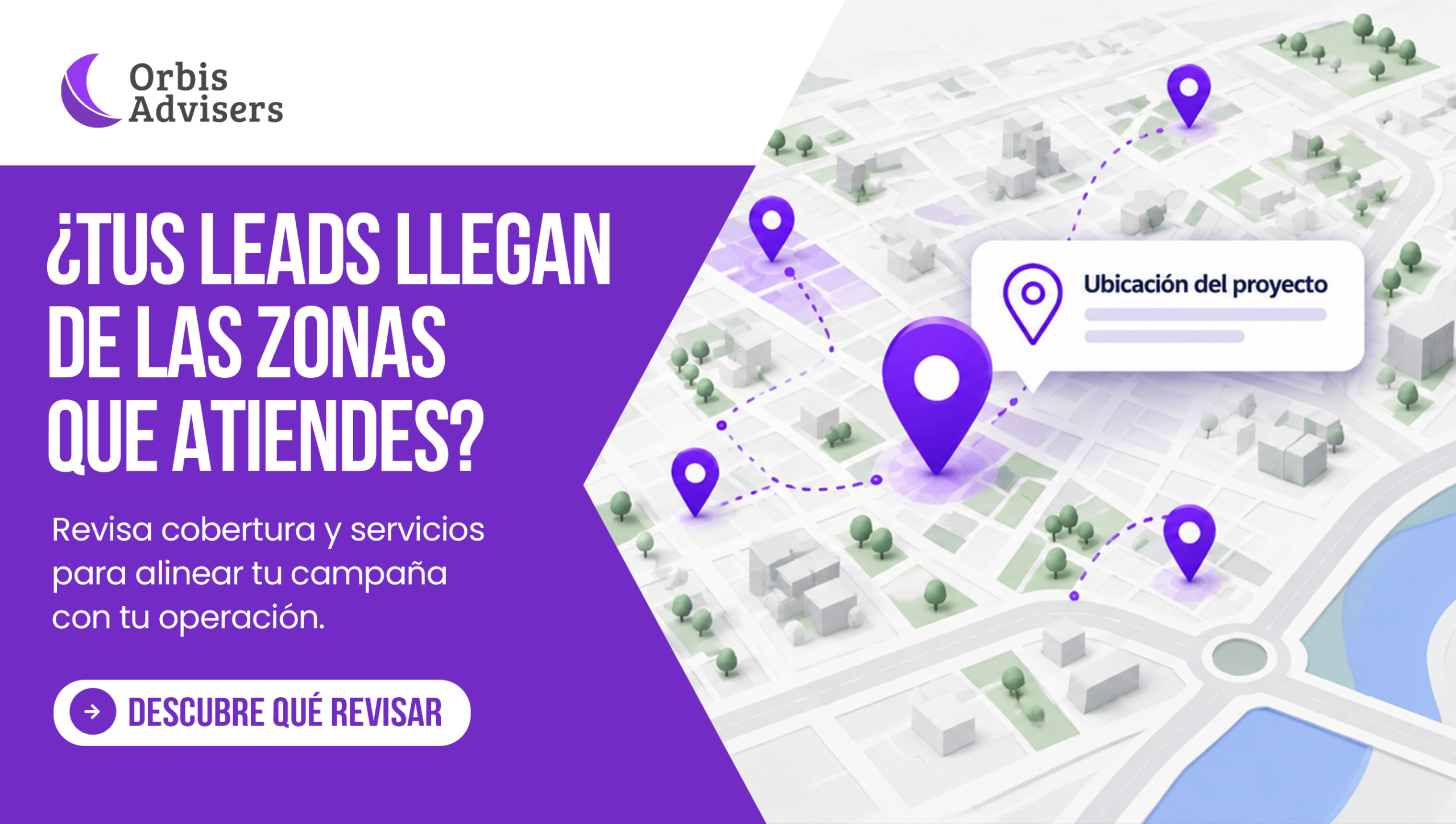
If your business serves an area of approximately 50 miles, identify which cities or ZIP codes fall within that service area. You can set this up using the geographic options available in your account. A reference map can help you discuss this with your team, but it should not be interpreted as an exact boundary for each contact.
It’s important to keep in mind how this is set up. Google’s documentation describes how to select service areas by city, county, neighborhood, or ZIP code, and allows you to both include and exclude areas [1][2]. It doesn’t mention a radius in miles, so the practical step is to translate your operational radius into a list of specific cities or ZIP codes.
A simple way to do this is to start with what's actually happening in your operation:
What Your Transaction Says | How to apply this to the settings |
“We got as close as 50 miles from the office” | List the cities and ZIP codes within that radius and confirm which ones you can serve within a reasonable amount of time. |
“There’s an area we shouldn’t go to” | Explicitly exclude it rather than leaving it in by mistake [1]. |
“We serve only part of a city” | Check how the filter by ZIP code works, because the city may still appear as a service area [2]. |
2. Select jobs that you actually do
Review the types of services available for your category. Keep only those that your team can quote and perform. For example, a company that repairs and replaces roofs should confirm that the selected options reflect that scope of work.
Google explains that your ad may appear for searches that match the services you select, as well as for general searches within that category (such as “plumber”), but only if you offer common services in that category; that’s why it recommends choosing services directly related to your business [2]. It also notes that when you add a new category, you’ll be asked to complete additional verifications, and that you should update your categories, service areas, and types of work whenever your location or services change [1].
Practical steps include:
- Keep only those job types active that your team can quote and complete.
- Check periodically to see if your services have changed and update your account accordingly.
- Consider the “broad search” option: By default, your account is included in the general category for your industry, and you can disable this setting; however, Google warns that doing so may reduce your leads and recommends reviewing your lead and spending reports before making a decision [1].
3. Validate each query before concluding
Google may take into account the searcher's estimated location and the places mentioned in their search. The phone's area code also does not confirm where the project is located. Ask for the work address and compare it with the coverage area you've set up before classifying a query as outside your area.
There is a specific explanation for this in Google's documentation. According to [2], the ad may be shown to people estimated to be within your service area, as well as to people searching for place names in your area even if they are physically located elsewhere: someone in Los Angeles searching for bathroom repair services in San Francisco might see an ad for a San Francisco-based business [2]. In other words, someone located far away may be hiring someone to perform work on a property that is actually in your area.
Therefore, before ruling out a consultation, it's a good idea to follow a simple procedure:
- Ask for the person's work address, not just where they're calling from.
- Compare it to the cities or ZIP codes you entered.
- Decide: If it's covered, proceed with the quote; if it's not, respond politely and note the reason.
- Record the result to see if a pattern of areas without coverage recurs.
And if you receive a lead that clearly doesn't qualify, Google offers a solution: low-quality leads can be reported through the feedback survey included with the lead itself, and Google indicates that it may occasionally credit some of them [3]. This is not a guarantee of credit, so it's best not to count on it as part of your planning.
What Changes When You Limit or Expand Your Coverage
Reviewing coverage and services helps align the campaign with your operations. A more limited selection can also reduce the volume of contacts, so adjustments should be evaluated using business data.
It's a delicate balance. On the one hand, well-defined coverage prevents you from taking on jobs you can't handle. On the other hand, Google’s own performance guide suggests selecting all the types of work you do and defining broad areas, such as an entire county rather than specific ZIP codes [4]. The right decision depends on your operation: if you can effectively serve a large area, expanding your coverage can bring more opportunities; if travel leaves you with no margin, narrowing your coverage makes sense.
To make data-driven decisions, it's a good idea to compare the situation before and after each adjustment:
- How many inquiries came from areas you don't serve?
- How many leads came from areas that you do serve but weren't previously covering?
- How many were converted into quotes and closed deals?
- How much of the team's time was spent reviewing inquiries that weren't relevant?
Change one thing at a time and measure the results: that way, you'll know which adjustment produced which result.
Common Mistakes When Defining Service Areas
- Set the area intuitively, without listing actual cities or ZIP codes.
- Remove active services that the team no longer offers or cannot quote.
- Reject a call based solely on the phone's area code.
- Assume that the caller's location is the project's location.
- Reduce coverage without measuring how many contacts are lost.
- Do not update the account when the transaction, location, or services change.
Frequently Asked Questions About Service Areas at LSA
The Google documentation we consulted describes selection by cities, counties, neighborhoods, and ZIP codes [1][2], and does not mention a radius in miles. We recommend converting your operating radius into a list of specific locations and confirming the available options in your account.
Because Google may take into account both the searcher's estimated location and the places mentioned in their search [2]. The searcher may be far away but looking for a service for a property in your area.
Not necessarily. Before classifying a request as outside your service area, ask for the job address and compare it with your configured coverage.
Google recommends updating them whenever your location or services change [1]. It's also a good idea to review them periodically along with your lead reports.
References
[1] Edit your industries, service areas, and job types – Local Services Help (Google)
[2] About reaching customers with your Local Services Ads – Local Services Help (Google)
[3] How leads work – Local Services Help (Google)
[4] Improve your Local Services Ads performance – Local Services Help (Google)
Do your patients come from the areas you serve?
At Orbis Advisers, we help companies identify opportunities for improvement and develop digital strategies aligned with their services, market, and goals.
Request your free digital assessment (Click here)
Ready to attract more customers and grow your business?
Be the first to receive strategies, trends, and tips to help grow your business.


Orbis Advisers. All rights reserved.